

Trading gift cards for crypto is one of the fastest ways to access digital assets today. On Kochure, the process is designed to be simple, secure, and efficient.
However, some transactions get delayed or rejected because important details are skipped during submission.
To ensure your trade is processed quickly, follow the correct steps below when submitting your gift card.
1. Choose the Correct Gift Card Brand
The first step is selecting the correct gift card brand on the platform.
Kochure supports multiple cards such as:
- Amazon
- Apple / iTunes
- eBay
- Google Play
- Footlocker
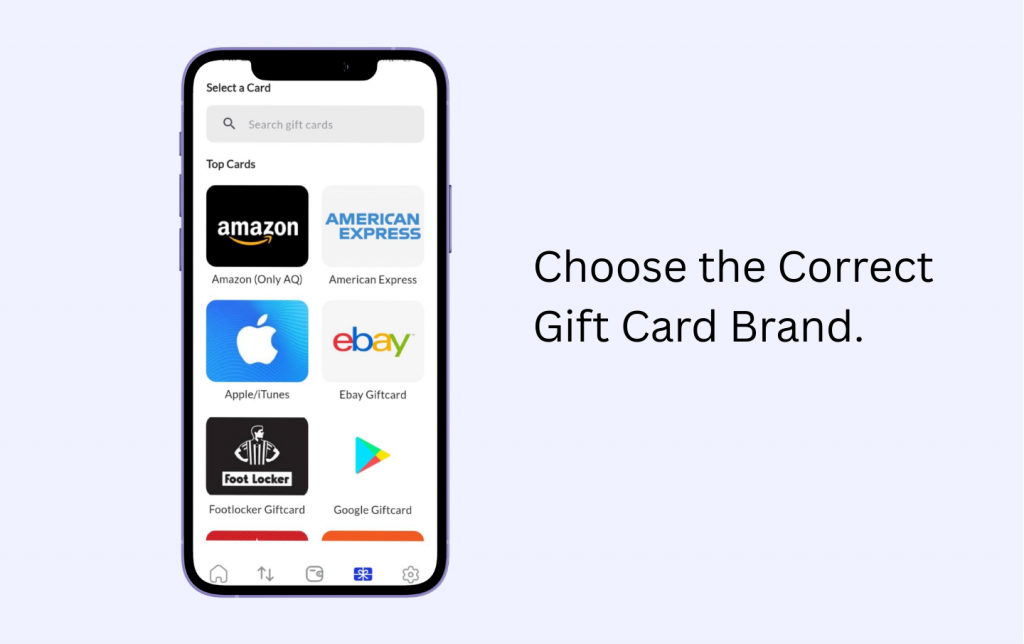
Selecting the wrong brand can cause the system to flag or reject the submission.
Tip:
Always confirm the brand printed on your card before selecting it in the app.
2. Select the Correct Country
Gift cards are region-specific, so selecting the correct country is very important.
For example:
- If the card was issued in the USA, select USA
- If it is a UK card, select UK
- If it is from Canada, select Canada
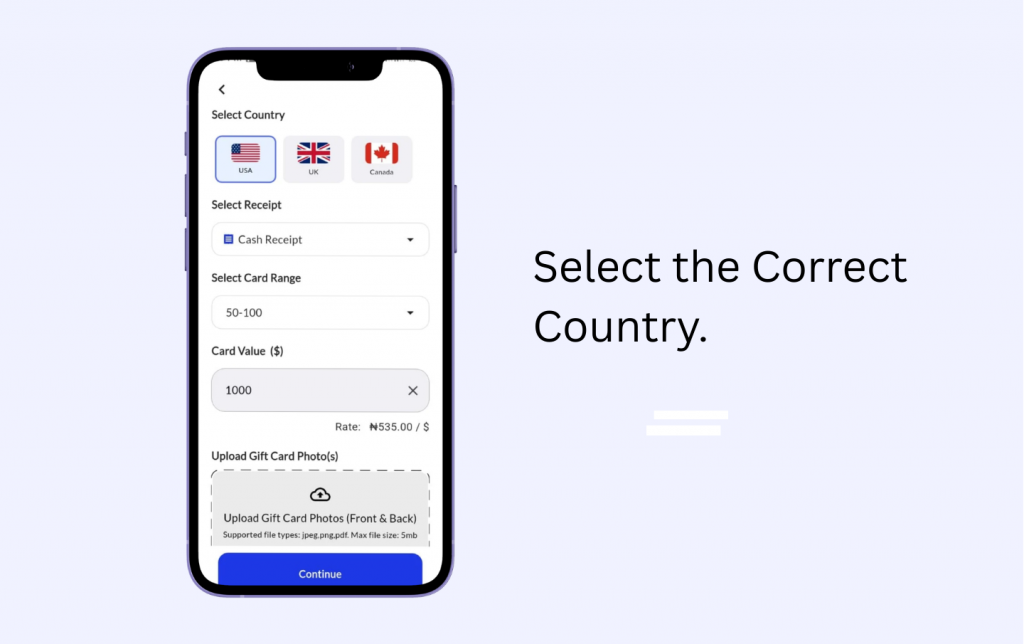
Choosing the wrong country can delay the verification process.
3. Select the Correct Card Value Range
During submission, you will be asked to choose the value range of the card, such as:
- $25 – $49
- $50 – $99
- $100 and above
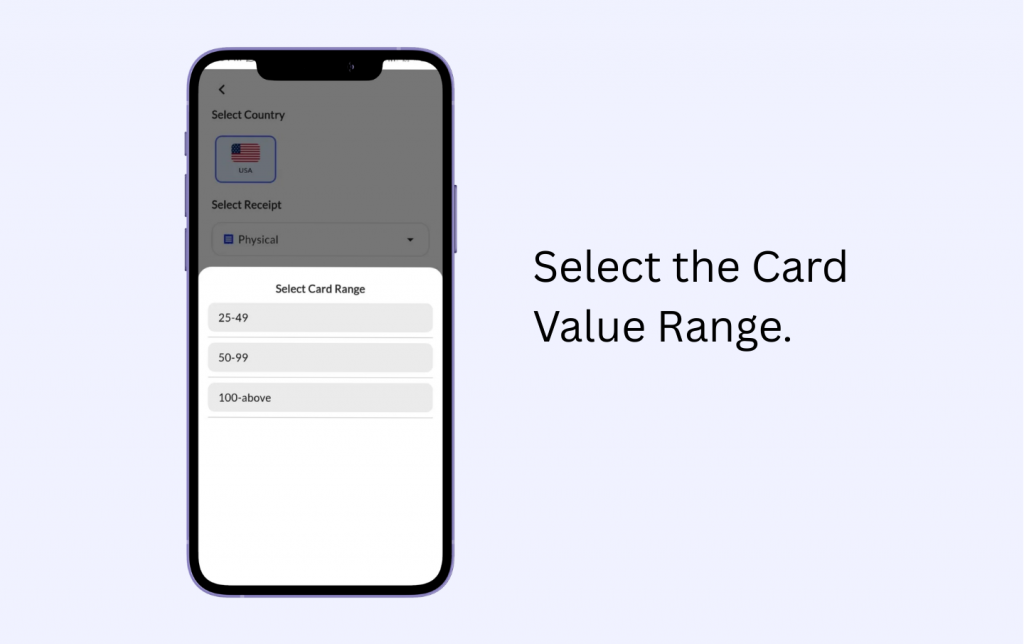
Always select the range that matches your card value to prevent delays.
4. Enter the Exact Card Value.
Make sure you enter the correct amount on the card.
Entering the wrong value can lead to:
- Trade rejection
- Verification delays
- Incorrect transaction processing
Accuracy ensures your trade moves smoothly through the system.
5. Select the Correct Receipt Type
When submitting your trade, Kochure allows you to choose the receipt type. Available options include:
- Debit Receipt
- Cash Receipt
- No Receipt
- E-code
Select the option that matches how the card was obtained.
For example:
- If the card was purchased with a debit card → Debit Receipt
- If purchased with cash → Cash Receipt
- If the card was received digitally → E-code
Choosing the correct receipt type helps avoid verification issues.
6. Upload the Purchase Receipt (If Required)
For some physical gift cards, uploading a purchase receipt may be required.
The receipt helps confirm the authenticity of the card and prevents fraudulent transactions.
Make sure the receipt image:
- Is clear and readable
- Shows the store name
- Shows the card value
- Shows the purchase date
7. Upload Clear Pictures of the Gift Card.
One of the most common reasons transactions fail is unclear or missing images.
When submitting your gift card, ensure that the picture:
- Shows the full gift card
- Is clear and not blurry
- Displays the card code properly
- Is not cropped
Clear images help the Kochure verification team process your trade faster.
8. Submit and Wait for Verification
Once your trade is submitted successfully, you will see a confirmation message showing:
Trade Submitted Successfully
Your transaction status will appear as “Pending” while the Kochure team verifies the card.
After verification, your crypto will be credited to your account.
Final Tips for Successful Gift Card Trading
To avoid delays when trading on Kochure:
✔ Select the correct gift card brand
✔ Choose the right country
✔ Upload clear gift card images
✔ Select the correct receipt type
✔ Provide the purchase receipt if available
✔ Enter the correct card value
Following these steps will ensure your trade is processed quickly and successfully.
Trade Gift Cards Easily on Kochure
Kochure makes it easy to convert gift cards into crypto safely and quickly.
By submitting accurate details and clear images, you can enjoy a fast and smooth trading experience every time.
Start trading today and turn your gift cards into crypto in minutes.